
How to Use The Desmos Graphing Calculator for the Digital SAT
Tips

Stephen Yang
The transition to the Digital SAT has introduced a game-changing tool: the embedded Desmos Graphing Calculator. While a scientific calculator is available, the Graphing Calculator is the true powerhouse. It allows you to visualize algebra, solve systems without substitution, and even "hack" difficult questions using regressions.
This guide covers everything you need to know to master Desmos for the SAT, from basic setup to advanced "cheat codes."
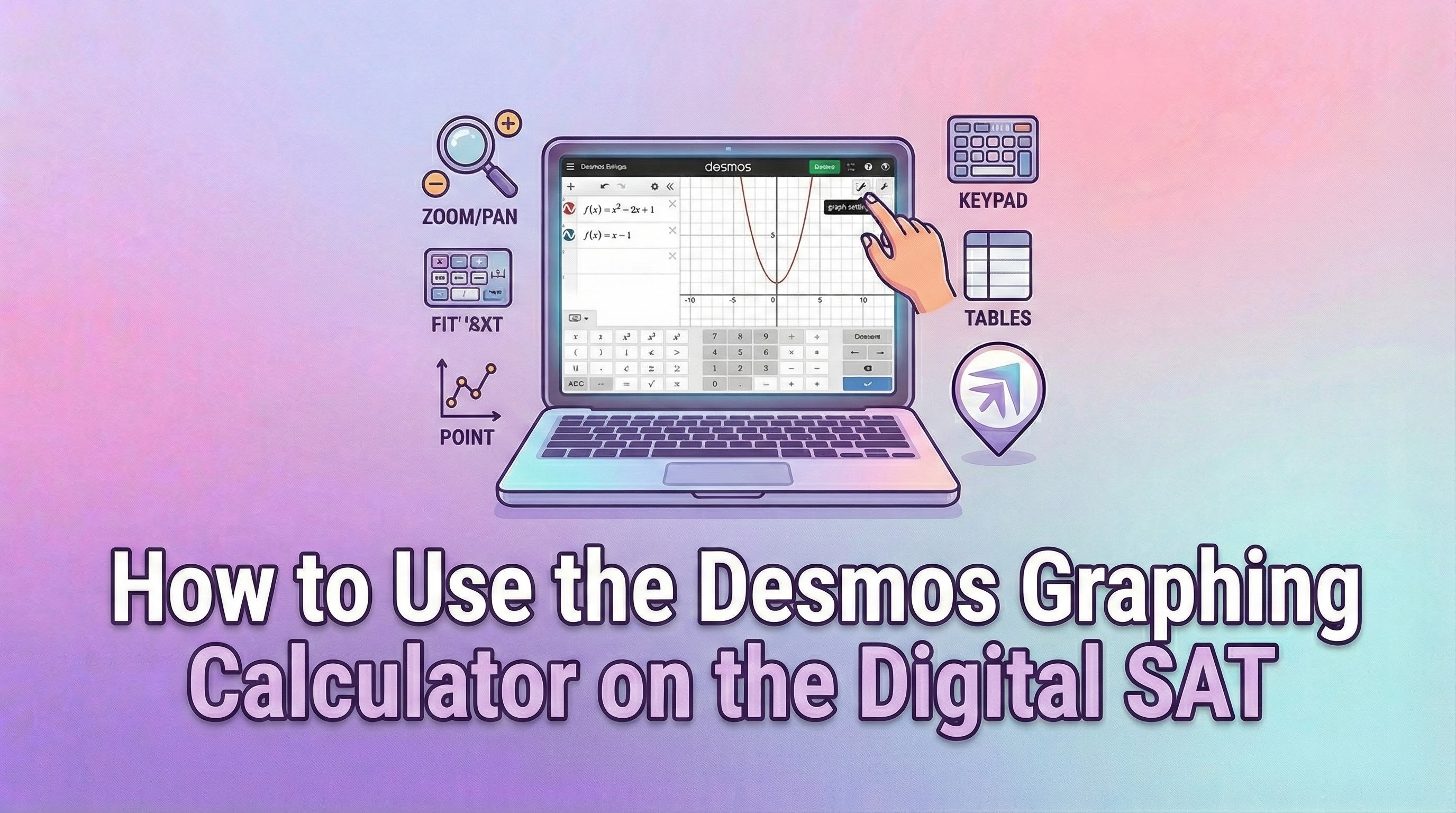
On test day, Desmos is built directly into the Bluebook testing app. You can access it by clicking the calculator icon in the top right corner during the Math section.
1. Accessing Desmos on the Digital SAT
Key Differences from the Web Version
The SAT version of Desmos is slightly different from the one you use in a browser:
Keypad: The letter keypad is alphabetical (A-Z), not QWERTY.
Restrictions: You cannot save graphs, open folders, or upload images.
Default Mode: Always check if you are in Degrees or Radians (default is often Degrees, but verifying is crucial for trigonometry).
Pro Tip: While you can bring your own physical calculator (like a TI-84), the embedded Desmos calculator is often faster for 80% of digital SAT math problems.
2. Core Features & Shortcuts
Visualizing Systems of Equations
Stop solving systems like 3x + 2y = 12 and y = x - 4 by hand.
Type the first equation into Line 1.
Type the second equation into Line 2.
Hover your mouse over the intersection point. Desmos will display the exact (x, y) coordinate.
Solving for "Equivalent Expressions"
If a question asks, "Which expression is equivalent to...?"
Graph the original expression given in the question (e.g., in Line 1).
Graph the answer choices one by one in Line 2.
The correct answer choice will perfectly overlap the original graph (often changing the color of the line).
The "Slider" Method for Constants
Many SAT questions ask you to find the value of a constant k or c (e.g., "For what value of k does the system have no solution?").
Type the equation exactly as written, including the unknown letter (e.g., y = kx + 5).
Desmos will ask: "add slider: k". Click the blue button.
Move the slider back and forth until the graph meets the condition (e.g., until the lines are parallel for "no solution").
3. The "Cheat Code": Linear & Quadratic Regressions
This is the most powerful trick for the Digital SAT. If you are given a table of points or a set of conditions and asked for an equation, let Desmos build it for you.
How to use Regressions:
Add a Table: Click the + sign in the top left and select Table.
Enter Data: Type your x and y values into the columns (Desmos labels them x1 and y1).
Run the Regression:
For a line (y=mx+b), type: y1 ~ mx1 + b
For a parabola (y=ax^2+bx+c), type: y1 ~ ax1^2 + bx1 + c
Crucial Syntax Notes:
You must use the tilde symbol (~) instead of an equals sign.
You must use x1 and y1 to reference your table data.
Desmos will instantly calculate the values for m, b, a, etc.
4. Hidden Functions for Statistics & Geometry
Don't waste time calculating means or standard deviations by hand.
Mean/Median: Type mean(1, 5, 9, 12) or median(1, 5, 9, 12) to get the answer instantly.
Circles: If asked about a circle equation like (x-4)^2 + (y+3)^2 = 25, graph it! You can visually identify the center (4, -3) and count grid units to find the radius (5).
5. Common Pitfalls to Avoid
Zoom Traps: If you graph something and see a blank screen, your window might be too small. Click the Wrench Icon (Graph Settings) to manually adjust the X and Y axis ranges, or zoom out until you see the line.
Variable Confusion: Desmos loves x and y. If a problem uses variables like t (time) or d (distance), it is usually safer to swap them to x and y when typing them into Desmos to avoid issues with sliders.
Percent vs. Decimal: Desmos calculates in decimals. If an answer requires a percent, remember to move the decimal point.
Conclusion
The Desmos Graphing Calculator is not just a tool for checking work; it is a primary solving method for the Digital SAT. By mastering regressions, sliders, and system visualizations, you can significantly reduce the time spent on algebra and increase your accuracy.

March 14, 2026
Your next SAT
is closer than you think.
Take the free 35‑minute diagnostic now. Get your exact score, a one‑page cheat sheet, and what to study next.
© 2026 SuperScored. All rights reserved.